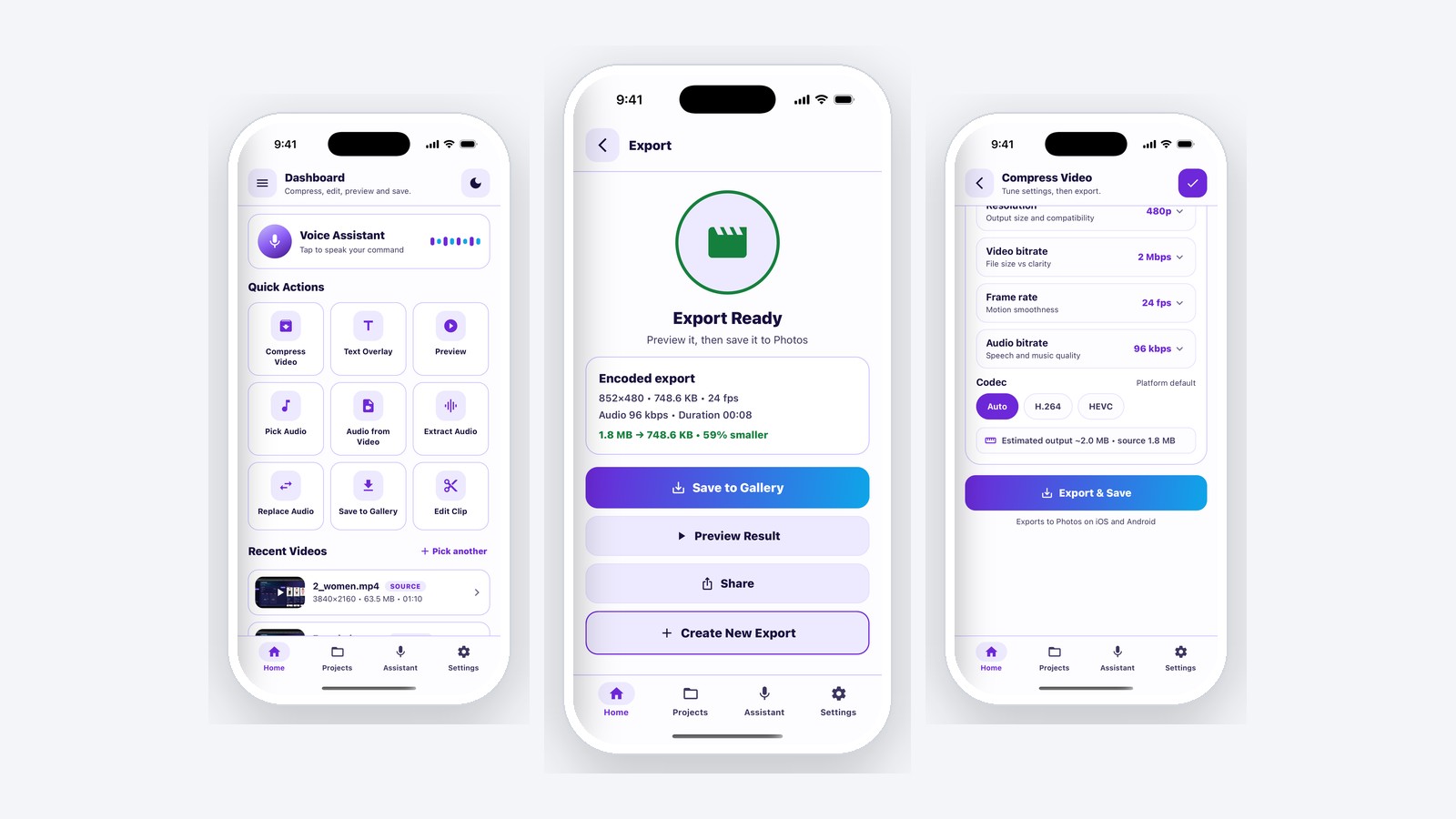
The Problem With Sending Video to a Server
The default way to shrink a user's video is to upload it, encode it somewhere, and send it back. That path costs bandwidth and compute on every single file, forever. It fails offline. It is slow, because the user waits for an upload before the work even begins. And it turns a private clip into something that now sits on someone else's infrastructure, which is a conversation most products would rather not have.
Doing the work on the phone removes all four problems at once. The cost is real engineering: React Native has no media pipeline of its own, and the two platforms underneath it disagree about nearly everything.
One Typed API, Two Native Implementations
The engine is a self-contained native module with a single JavaScript surface, implemented separately in Swift against AVFoundation and in Kotlin against MediaCodec. The product code calls one function; the module absorbs the platform differences.
- Bitrate-accurate encoding with explicit control over resolution, video bitrate, frame rate and audio bitrate, so an output size can be targeted rather than hoped for.
- Codec selection exposed, not hidden, HEVC when size matters, H.264 when compatibility does, or the platform default.
- Cancel-safe progress events, so a user backing out mid-encode never leaves a dangling job or a corrupt file.
- Editing as remux, not re-encode, trim, rotate and mute copy the existing streams into a new container, so they finish effectively instantly and lose no quality.
What It Measures on a Real Export
The app reports its own before-and-after, so these are readings rather than marketing estimates. A 1.8 MB 720p clip taken to 480p HEVC lands at 748.6 KB. A 63.5 MB 4K source is handled on the handset itself.
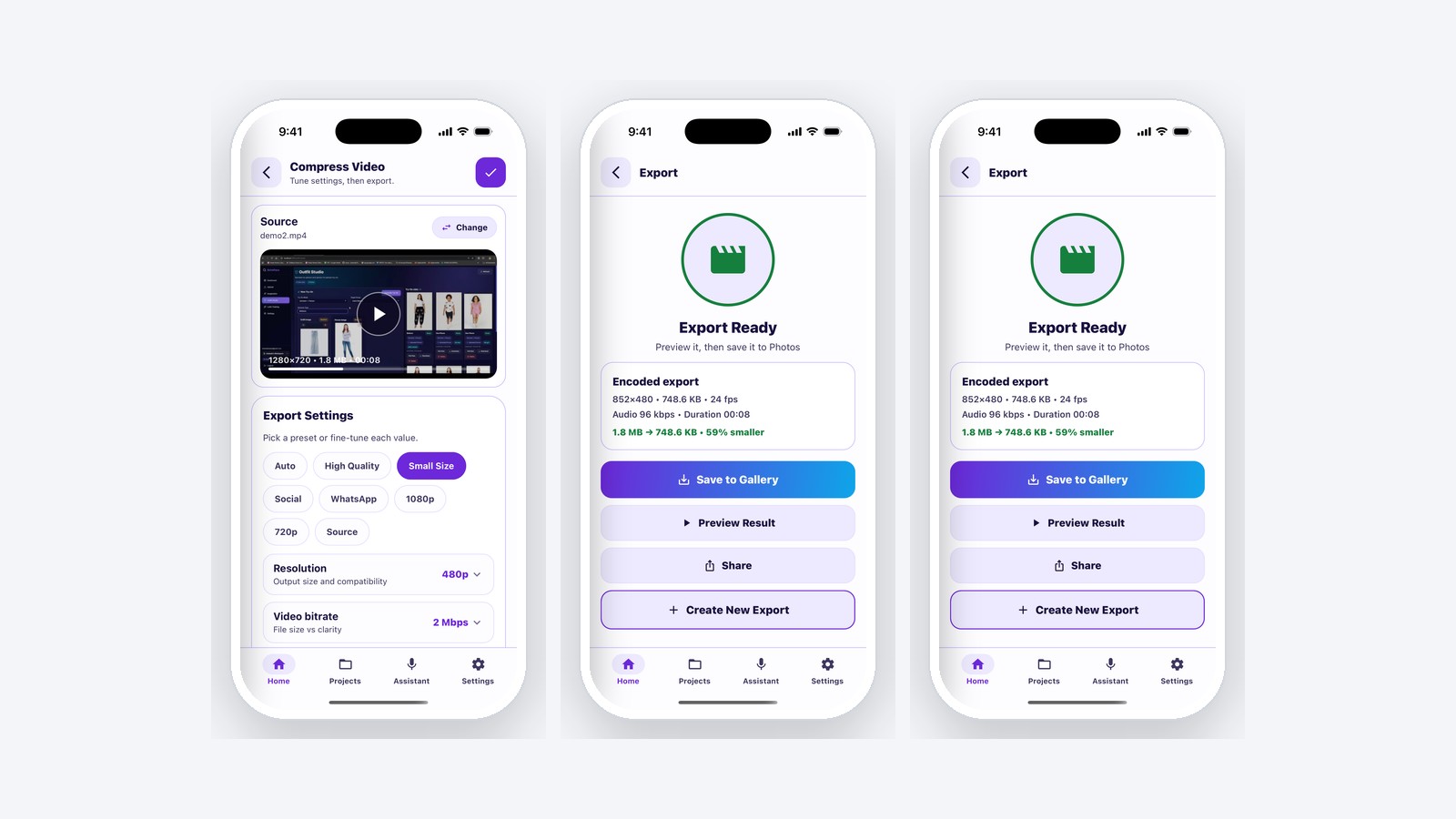
Before the encode begins, a live estimate does the bitrate arithmetic. During it, progress is visible and cancellable. After it, the result states exactly what changed, and offers save, preview and share without a second processing step.
The Encoder Detail That Actually Mattered
A 4 Mbps request was quietly landing at 3.3–3.7 Mbps on H.264 sources. Average-bitrate rate control is quality-capped: on content the encoder finds easy, it simply gives bitrate back, and raising the target does not help because the result plateaus. Switching those clips (and only those) to constant bitrate brought output onto target without disturbing footage that already encoded correctly. That distinction is the difference between a size dial that works and one that lies.
Editing, and the Limits Written Down
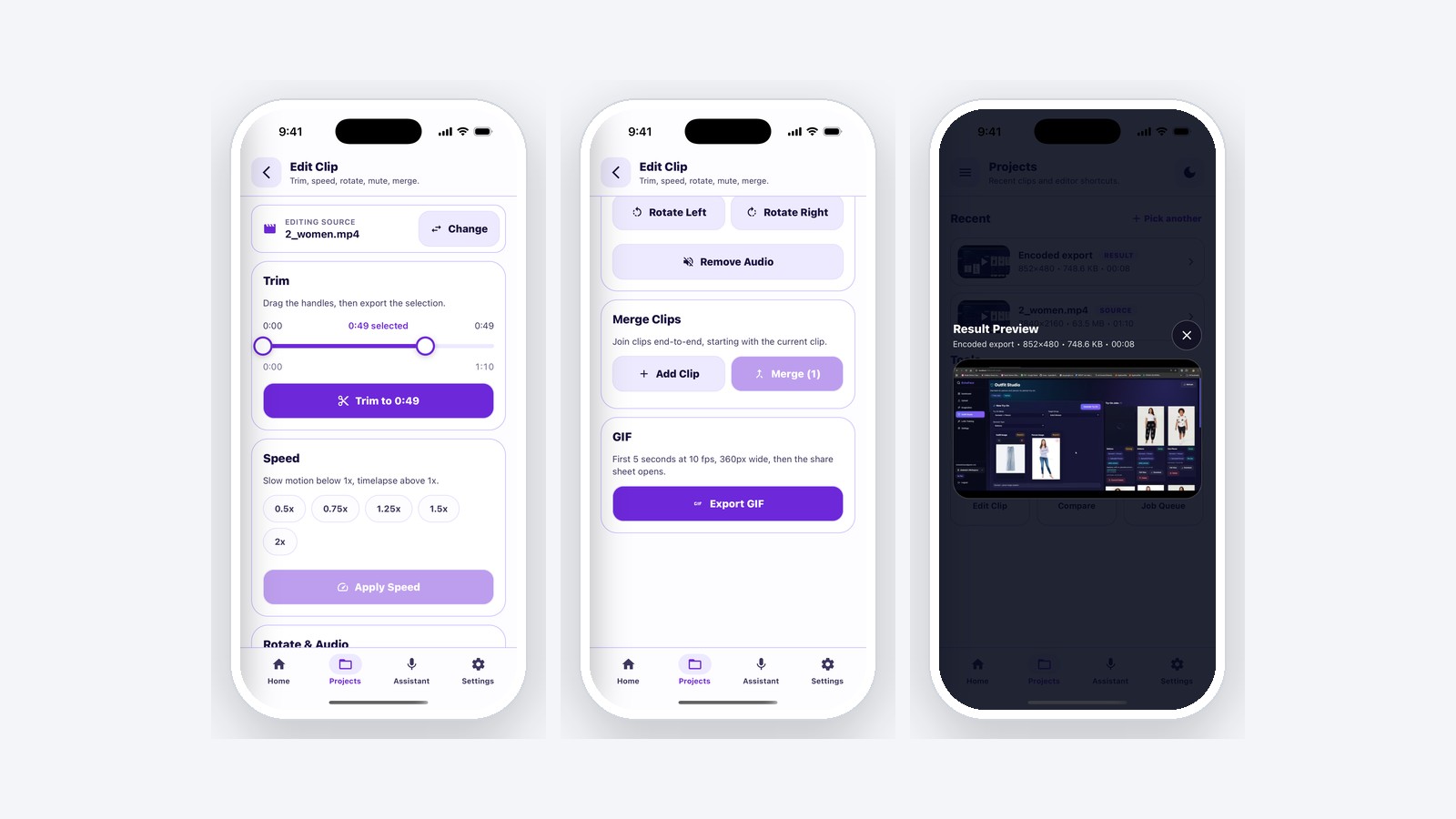
Trim, speed, rotate, mute and merge sit on the same clip, and the source can be swapped at any point without losing your place. Cross-platform media work is full of asymmetries, and the failure mode is a module that pretends they do not exist until an app ships a bug, so this one carries a support matrix instead. Merging on Android requires matching codec and resolution, and the interface says so before you try. A speed change preserves audio on one platform and not the other. Each limitation is documented next to the API that has it.
GIF export is the sharpest example: iOS hands frames to ImageIO in a few lines, while Android has no equivalent at all, so that platform carries a hand-written GIF89a encoder, palette quantiser and LZW compressor included, to produce the same output.
The Interface Around the Engine
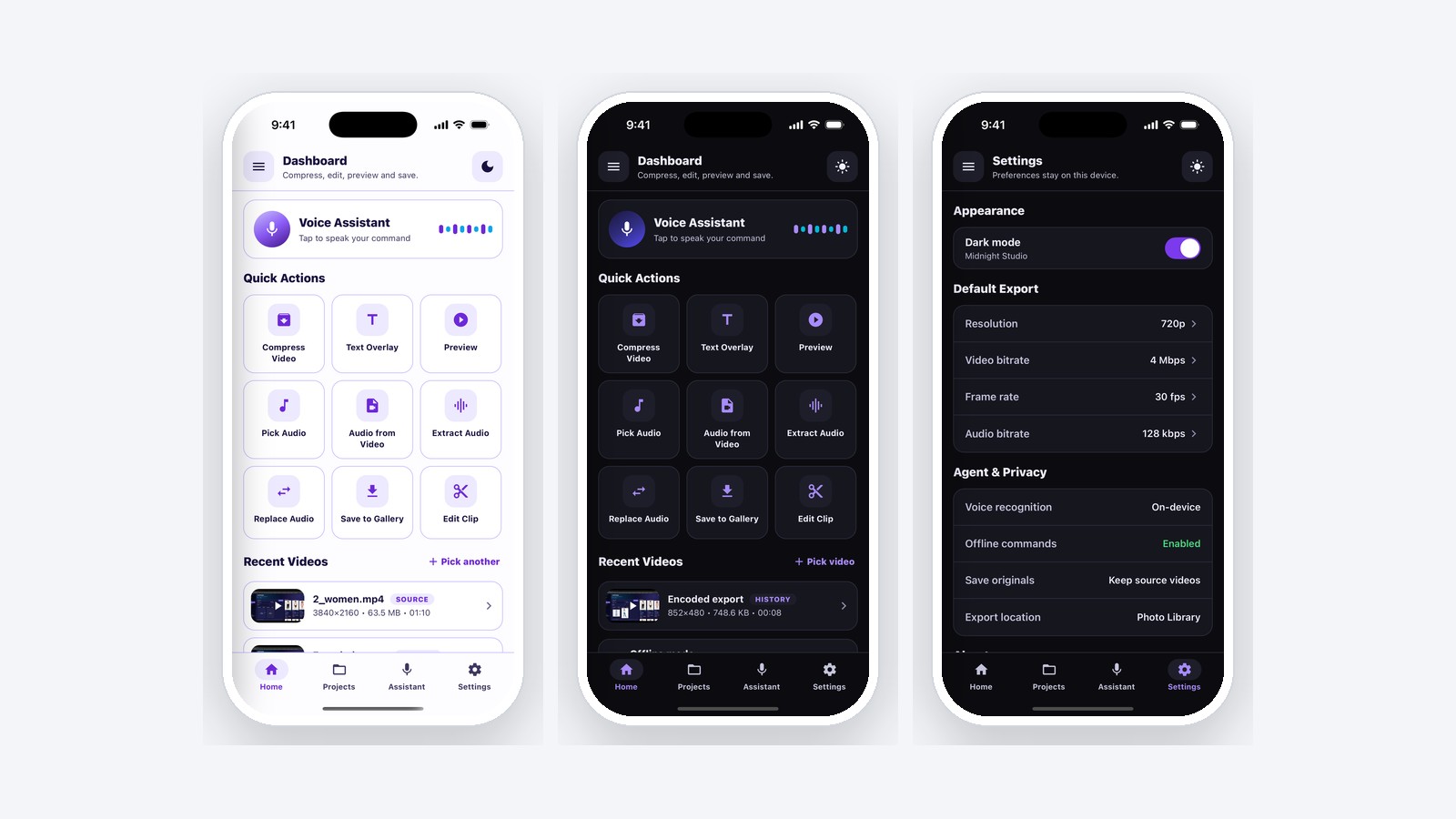
Two complete themes from one token set (designed rather than inverted) with a shared component layer for cards, chrome and controls. Colours that sit on top of video come from a dedicated on-media palette, so captions stay legible over any frame, and preview posters use real decoded frames rather than placeholder art.
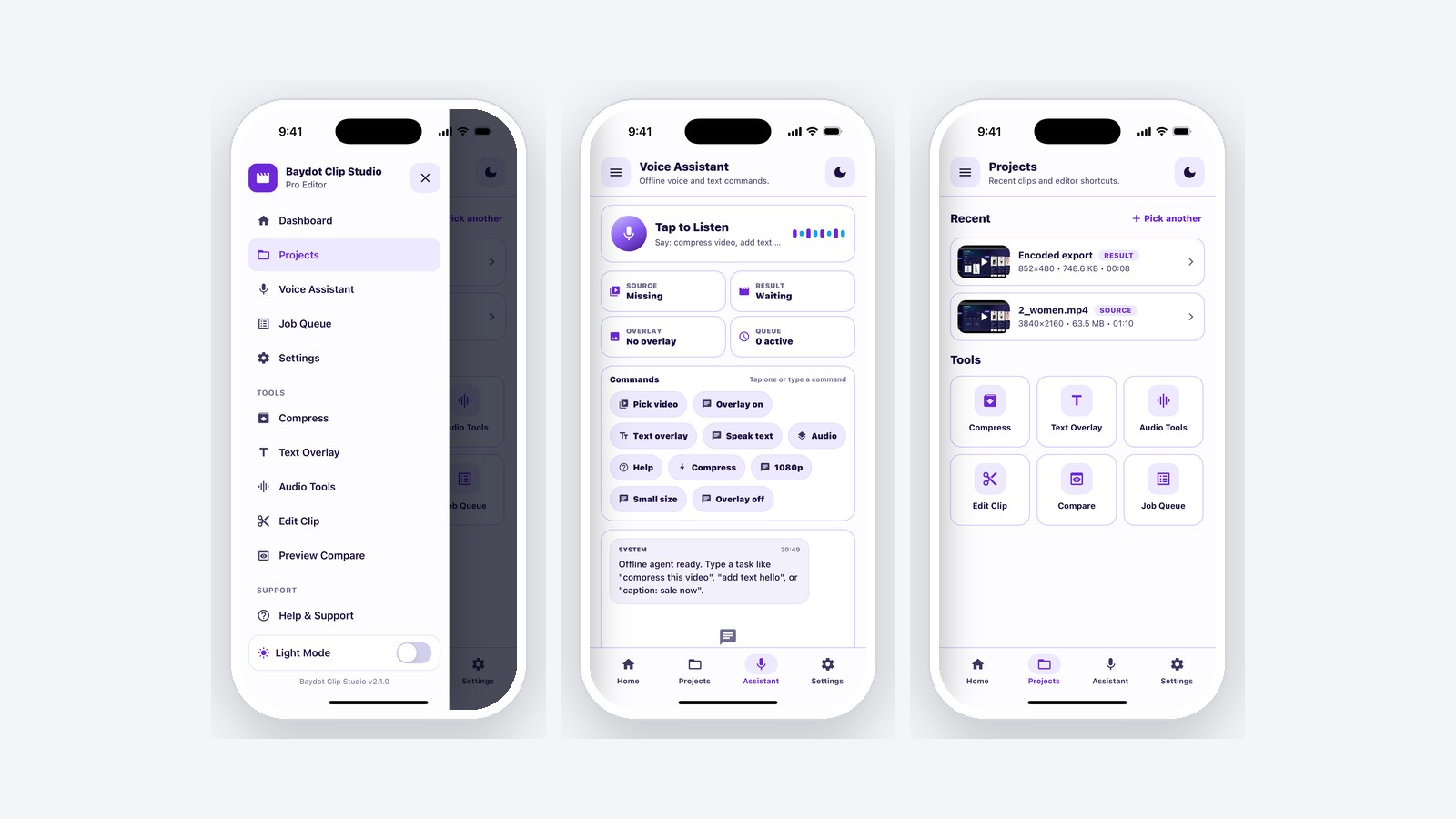
Finished exports persist for seven days and survive a restart, with entries dropped automatically once their file leaves the cache. An offline command surface accepts typed or spoken instructions ("compress this video", "save to library") parsed on the device, with no network call behind it.
When On-Device Is the Right Call
On-device media costs more engineering up front and pays it back at every unit of scale. For a consumer product where users process video regularly, that trade is clearly correct, zero marginal cost, works offline, nothing to explain about privacy. For a low-volume internal tool processing a handful of files a month, it is the wrong call, and a server pipeline is the cheaper answer. We will tell you which one you are before quoting the work.
Need native performance inside a React Native app?
Media pipelines, sensors, background processing. The work that does not fit in JavaScript. Baydot builds reusable native modules with a typed API and documentation your team can rely on.
Book a Free Call